Chapter 2
The hub
The hub is the first place you reach after signing in or choosing Skip sign-in. From here you start and open projects, set the language, theme and engineering units, read the legal documents and the About box, and check your account. It has four sections: Projects, Settings & Units, Documentation & Legal and Profile.
Moving around the hub
The navigation adapts to the size of the window. A wide window has a sidebar on the left. A medium-width window, or a window that is not very tall, has a narrow rail. A phone-width window has a bottom bar with short labels: Projects, Settings and Legal.
The navigation also shows who you are. In development access it reads Development access with Not signed in below it.
Projects
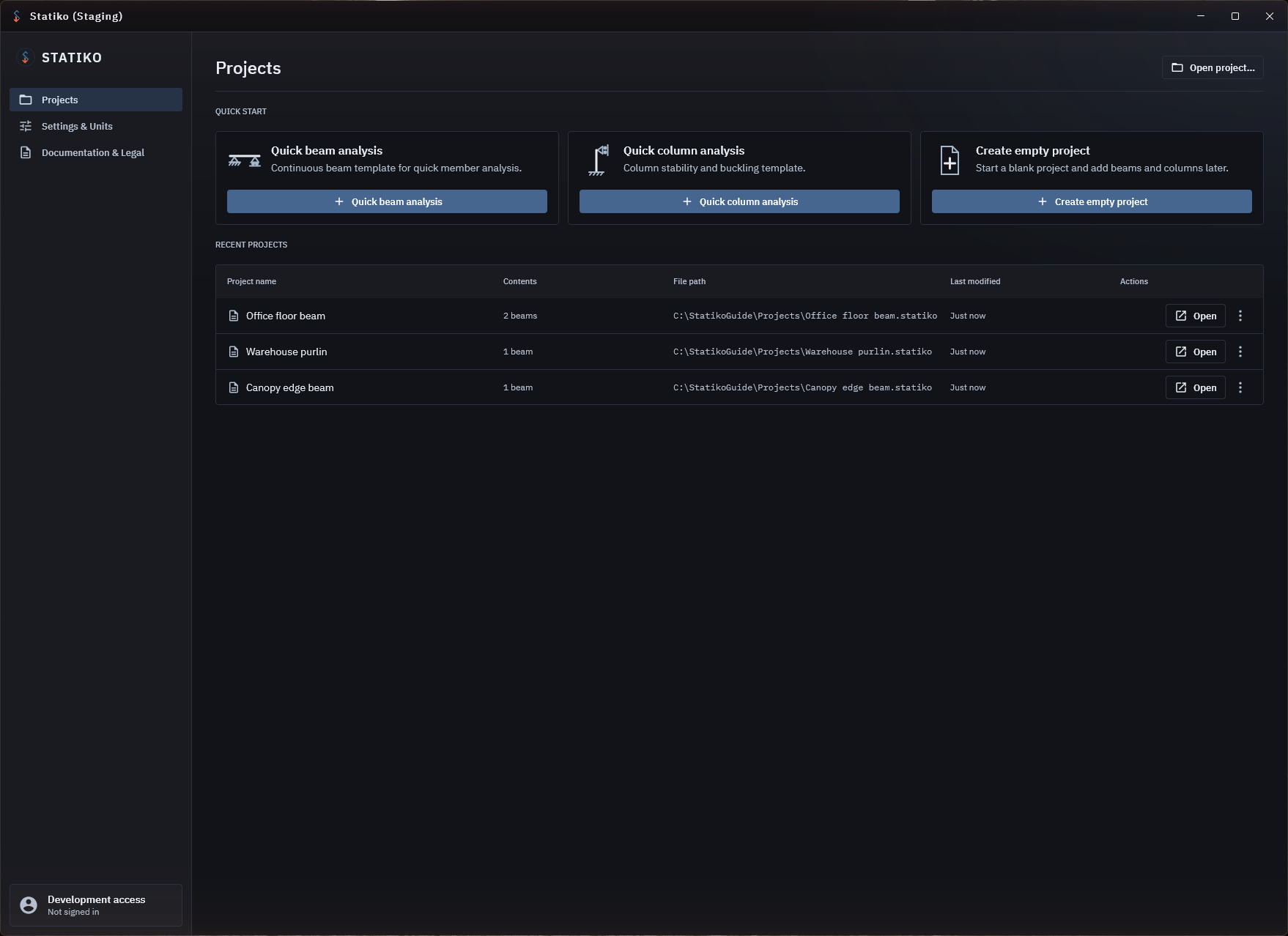
The Projects page is where your work starts. The Open project… button at the top right opens a .statiko file from your computer.
Quick start
Three cards start a new project:
| Card | What it does |
|---|---|
| Quick beam analysis | Continuous beam template for quick member analysis. |
| Quick column analysis | Column stability and buckling template. |
| Create empty project | “Start a blank project and add beams and columns later.” You add them from the workspace (Chapter 3). |
The cards are enabled only when this build lets you create projects. When it does not, a notice above them gives the reason, for example No verified licence is available., followed by A verified licence is required to create or edit projects. Existing files remain available for reading and recovery. If column editing is not part of this build, choosing the column card shows Column editing belongs to the next workspace milestone.
Recent projects
Under Recent projects you find the last ten projects you saved or opened. A wide window shows them as a table with the columns Project name, Contents (for example "2 beams, 1 column"), File path, Last modified (for example "Just now", "3 hours ago" or "Yesterday") and Actions.
- Open opens the project.
- Remove takes it off the list. The file itself stays on your computer.
- When the file has moved, its path reads File not found. Choose Locate… to find it.
With no recent projects, the card reads No recent projects, Projects you save or open appear here. with an Open project… button. If the history itself cannot be read or saved, a notice says so, and your project files are not affected.
If a project cannot be opened, the page tells you why:
- File not found. Locate it using Open project.
- The project file is inaccessible. Check file permissions.
- The project file is malformed. Its contents have been preserved.
- This project format or analysis is not supported by this workspace.
- The file operation failed. Existing project files are unchanged.
Settings & Units
Settings take effect as soon as you change them. There is no Save button. After each change a short confirmation appears, such as "Theme changed." or "Metric (SI) preset applied." If a change cannot be stored on this device, the field shows This change could not be stored on this device. Your previous settings are preserved. Reset to defaults at the top restores the system theme, English and the recommended metric units.
General
- Interface language: English (the default), Danish or Serbian.
- Theme: System (the default), Light or Dark.
- On Windows, AI agents (MCP) lets AI assistants work with your Statiko projects. See Chapter 23.
- Introductory guide: Show the tour at start (ticked until you turn it off) and Start the tour now. See The introductory tour.
Units
The Engineering units and precision card sets, for each quantity, the Input unit you type in, the Screen display unit and the PDF report unit, with Decimals from 0 to 8 for display and report. It covers 17 quantities, from Length and Force to Warping constant and Bending stiffness. Unit preset applies Metric (SI) or Imperial (US) in one step.
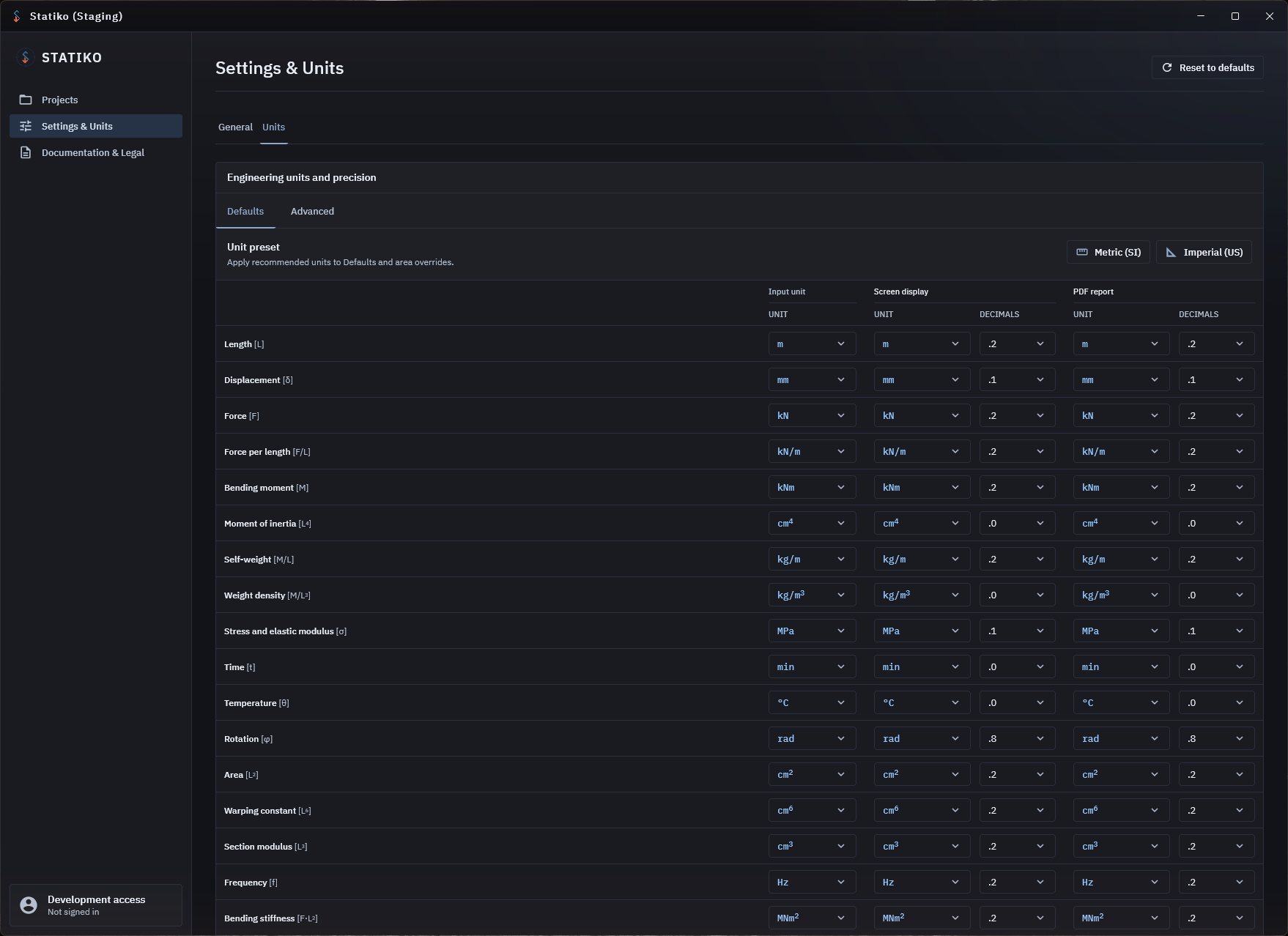
The Defaults tab applies everywhere. The Advanced tab overrides units for one app area: Cross-section / detailing, Supports, Loads or Results. A field without an override shows Global (…), and Use global clears the overrides of an area.
The introductory tour
At the first start the hub shows Welcome to Statiko over the Projects page. Choose a tour, Steel, Timber, Glulam or Concrete, and select Take the tour. Not now closes the dialog, and it does not show by itself again.
The tour opens its sample as a new project, so it needs a licence that can create projects. Without one, the dialog does not show by itself; opened from Help or Settings, it keeps Take the tour unavailable and says that the sample needs a verified licence.
Each tour opens its sample beam as a new, unsaved project called Statiko tour · followed by the material. Your own files are not touched; if a project is open, the hub asks you to close it first, as Open project… does. The tour then walks through eight steps: design code, member, supports, loads, structural system, result graphs, checks and report. Each step lights up its part of the window, explains it in a sentence or two and links to the chapter of this guide that covers it. The results shown are Statiko's own calculation of the sample beam. While the tour runs, the beam cannot be edited.
Skip tour, the close button, Esc, Android Back and Finish on the last step end the tour and turn off Show the tour at start. The sample beam stays open for you to try; closing it after a change asks whether to save it, as with any new project. On a phone the tour's card is a sheet at the bottom of the screen, and the tour switches to the tab that holds each step and scrolls its part into view; for Report, at the foot of the checks, the sheet moves to the top of the screen.
To take the tour again, choose Help › Introductory tour… in a project (on a tablet it is in the ☰ menu's Help section), or Start the tour now in Settings & Units › General, which is the way on a phone.
While Show the tour at start is ticked, two hints appear once in a beam project: Add your loads here beside the Loads card while the beam has no load, and Your PDF report beside Report once a report can be made. Got it hides a hint for good; ticking the box again brings back any hint you have not dismissed. Hints do not show during the tour.
Documentation & Legal
This page opens with a reminder headed Engineering responsibility: results, diagrams and reports are engineering aids, and a qualified engineer must review and approve every design before construction or fabrication.
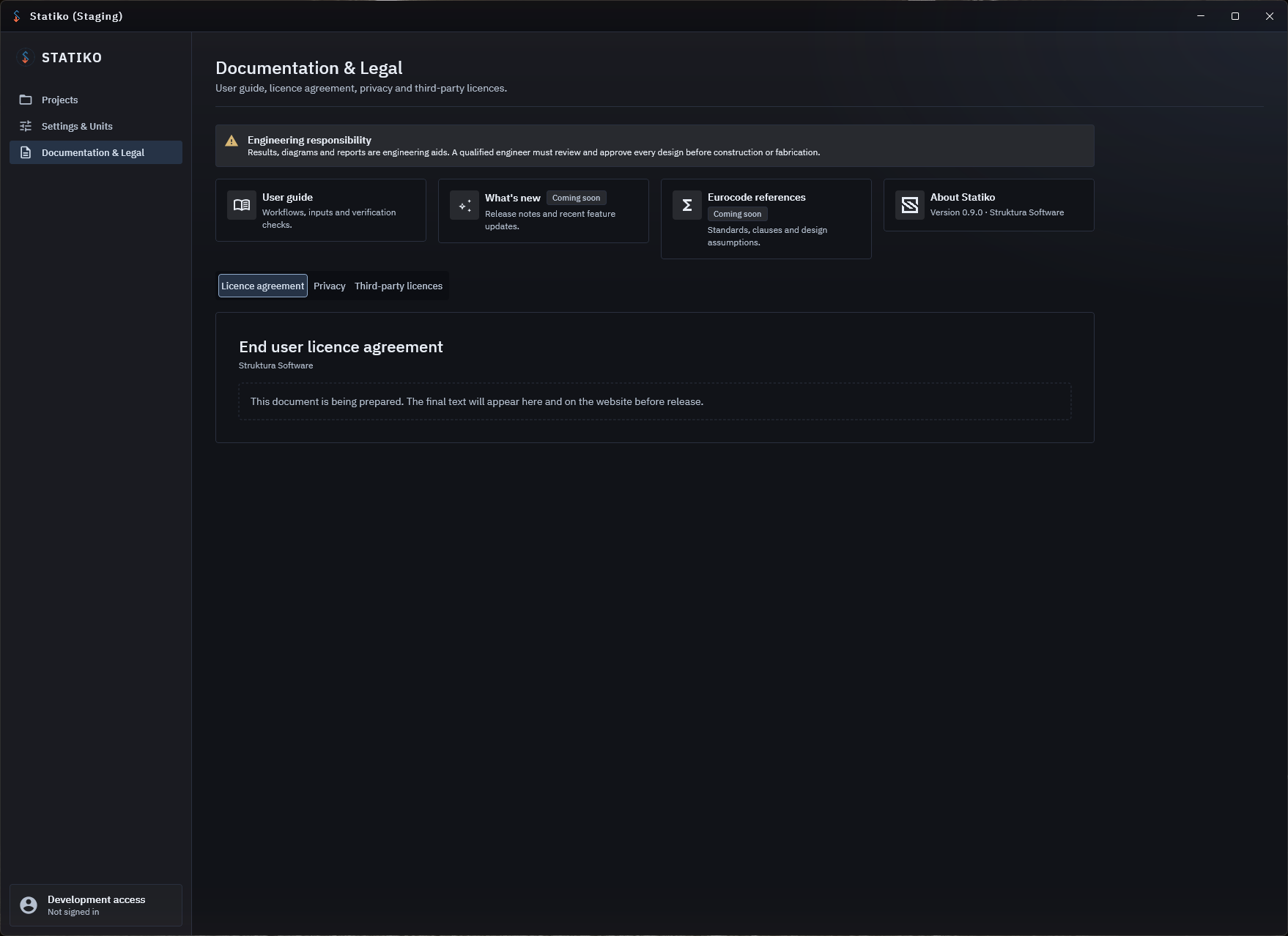
Below it are four tiles. About Statiko shows the version and the company. User guide opens this guide. What's new and Eurocode references are tagged Coming soon and are not available in this version.
The tabs Licence agreement, Privacy and Third-party licences show the documents. The licence agreement and the privacy policy are still being prepared, and the page says that their final text will appear before release. Third-party licences lists the software bundled with Statiko; choose View full third-party notices to read all of it. When a document is also on the website, Open on website opens it in your browser.
About Statiko
The About box shows the version, the company (Struktura Software, strukturasoftware.com) and the licence (Proprietary, all rights reserved). Development builds also show the environment. On Windows, About and the third-party notices open in their own windows, which you can move. Esc or Close closes them. On phones and tablets they open as dialogs.
Profile
Profile shows your account, licence and activated devices. In development access it shows Development access, with the explanation that you are not signed in, that licensing is not checked in development builds and that nothing is saved to an account. Sign in returns you to the sign-in screen and ends development access.
When you are neither signed in nor in development access, the page shows Not signed in with Sign in and Open projects, and an Account card whose email, sign-in method, licence and offline-use rows are empty or Unverified.
Signed-in account management (managing your account, checking the licence again, activated devices and signing out) belongs to the beta licence, which is not available in this version.