Chapter 3
The beam workspace
The beam workspace is the window where you build and check a project. Its frame (title bar, menus, ribbon, analysis tabs and status bar) holds every command around the beam model. The regions inside it hold the inputs, the drawing, the result graphs and the checks, which later chapters describe. Statiko calculates by itself after every valid change, so there is no Calculate button: you edit, and the status bar tells you where the result stands.
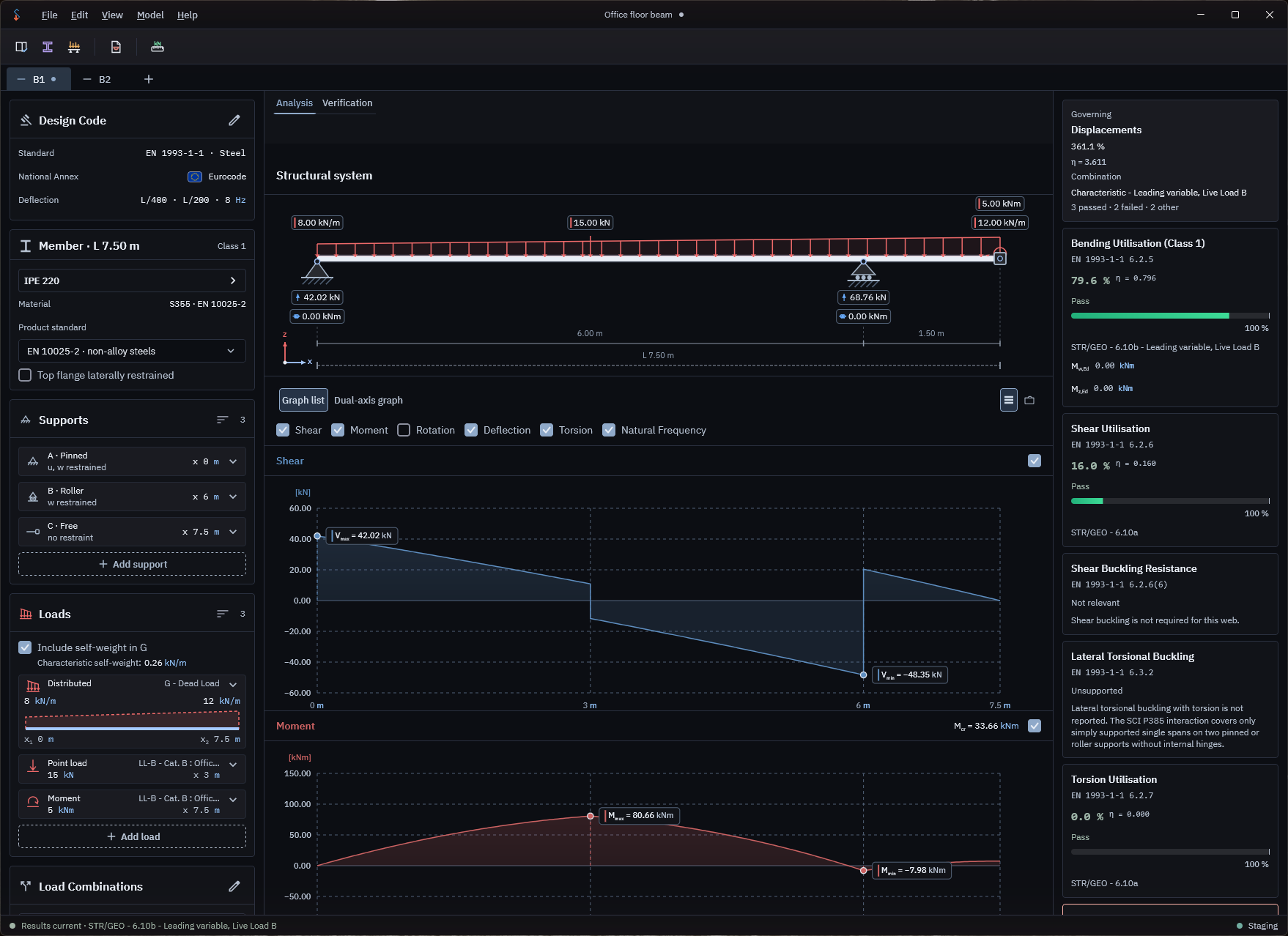
Title bar and analysis tabs
The title bar runs across the top of the window. On the left are the logo and the menus. In the centre is the project title, with a marker when there are unsaved changes. On the right are the Windows window controls. Drag the title to move the window, and double-click it to maximise or restore. The title is plain text; to rename the project, use Project properties… (see Project properties).
Below the ribbon is the strip of analysis tabs. Each tab shows a beam or column icon, the analysis name (new beams are named "Beam B1", "Beam B2" and so on) and the unsaved marker. Click a tab to switch analysis; switching alone does not make the project unsaved. With many tabs, scroll the strip sideways with the mouse wheel, and the selected tab moves to the centre. Tabs have no close button, and every analysis always keeps its tab.
The + at the end of the strip adds an analysis. Beam analysis… opens the dialog for a new beam, where Create opens the new beam and Cancel takes you back. Column analysis… belongs to columns, which this guide does not cover yet.
Source: spec/beam/workspace-shell.md rules 1 to 4, 35 and 45.
Menus and shortcuts
The menu bar holds File, Edit, View, Model and Help. Each menu shows its shortcuts at the right.
| Menu | Command | Shortcut |
|---|---|---|
| File | New project… | Ctrl+N |
| New analysis… | Ctrl+Shift+N | |
| Open project… | Ctrl+O | |
| Recover previous version | ||
| Save project | Ctrl+S | |
| Save as… | Ctrl+Shift+S | |
| Project properties… | ||
| Export PDF report… | Ctrl+P | |
| Close to launcher | Ctrl+W | |
| Edit | Undo | Ctrl+Z |
| Redo | Ctrl+Y or Ctrl+Shift+Z | |
| Settings & Units… | Ctrl+, | |
| Model | Section catalogue… | |
| Design code… | ||
| Load combinations… | ||
| Help | User guide… | |
| About Statiko |
New analysis… opens the same choice as the + on the tab strip. Undo and Redo are disabled when there is nothing to undo or redo. The View menu holds the graph choices Graph list or Dual-axis graph, and Stacked or Tabs. When a choice cannot be used, its tooltip says why. Chapter 11 describes the result graphs. In the Help menu, User guide… opens this guide; Calculation methods… is not available in this version.
A disabled command tells you why in a tooltip when you point at it or move to it with the keyboard. A command that is not built yet says Not available yet.
Using the menus from the keyboard
- Alt or F10 moves to the menu bar. Alt+F, E, V, M or H opens that menu directly. The access letters are always underlined.
- Left and Right move between menus. Up and Down move between commands, and Home and End jump to the first and last.
- Esc closes the menu and returns to its title. Tab or a click outside also closes it.
Source: spec/beam/workspace-shell.md rules 5 to 13.
The ribbon
The ribbon under the title bar holds five icon buttons for the commands you use most:
| Command | Opens |
|---|---|
| Design code | The design code window (Chapter 5). |
| Cross-section | The profile catalogue, the same as Model › Section catalogue… (Chapter 6). |
| Load combinations | The load combinations window (Chapter 15). |
| Report | The PDF report export (Chapter 14). |
| Units | The settings window on its Units tab. |
Report, File › Export PDF report… and Ctrl+P follow one rule. They work when there is a current result, an outdated result, or a previous result while a new calculation runs. Otherwise they are disabled with No current result is available for a report. Calculate first.
The carbon chip
After the ribbon buttons a chip shows the selected beam's product stage carbon (A1-A3) in kg CO₂e, the same total the report prints. Click it to open the split per material: one row per material with its quantity, factor, kg CO₂e and share, then each factor's source. A material without a saved factor uses the generic conservative value of Boverkets klimatdatabas 02.07.000, named with its resource id. Timber and glulam add the line Biogenic carbon stored (not included), which the total leaves out. While a material has no named factor the chip reads No total and the row No factor; while the result calculates it reads Calculating, and without a mass, a length or a concrete section with detailing it reads Unavailable. With no single beam selected there is no chip. You replace a factor in the cross-section window's Carbon tab (Chapter 6, Chapter 7).
Source: spec/beam/carbon.md rules 1 to 8.
Settings over the project
Units opens the settings window on Units, and Edit › Settings & Units… opens it on General. It holds the same settings as the hub (Settings & Units): interface language, theme, AI agents on Windows, and the engineering units with their Defaults and Advanced tabs. On Windows it is a separate window you can move. Esc or Close returns you to the project.
Source: spec/beam/workspace-shell.md rules 16 to 19.
The status bar
The status bar along the bottom always tells you the state of the result and, when results are current, which combination is shown. Read it after every change.
| Status | Meaning | Report |
|---|---|---|
| Empty project | The project has no analysis yet. | Disabled |
| Not calculated | Nothing to calculate yet, for example a beam with no loads and self-weight off. | Disabled |
| Calculating… | A calculation is running (with a turning indicator). | Enabled only if a previous result exists |
| Results current · combination | Results match your inputs. Without a combination selected it reads Results current. | Enabled |
| Results outdated | The results shown no longer match the inputs. | Enabled |
| Invalid input | An input is not valid, so nothing can be calculated. | Disabled |
| The beam is not stable with these supports and cannot be calculated. | The supports leave the beam free to move. | Disabled |
| Calculation failed, Calculation unsupported, Calculation unavailable | No result could be produced. | Disabled |
For the last two rows the drawing area also shows an error notice with the reason. The notices have no button: your next change starts a new calculation. The status bar grows to show the full sentence and never cuts it off. Builds outside Production end the status bar with the environment name, for example Staging.
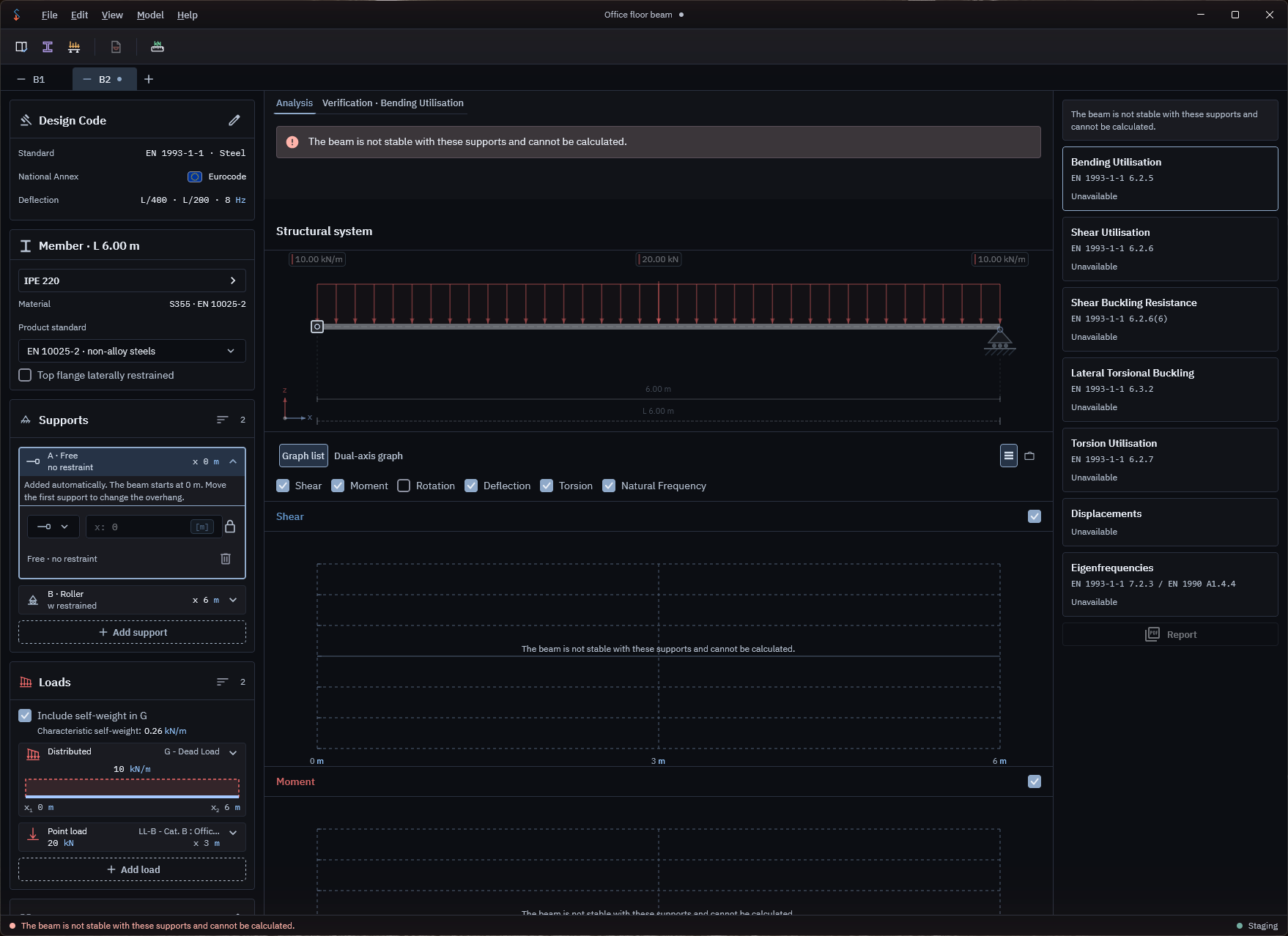
Source: spec/beam/workspace-shell.md rules 20 to 25 and 36.
Project properties
File › Project properties… is where you rename the project and its analyses and delete analyses.
- Open Project properties…. The Project name field is selected, ready for typing.
- Edit the project name and the analysis names (Analysis 1, Analysis 2 and so on).
- To delete an analysis, choose its red bin button, Delete analysis. The row disappears at once, with no confirmation.
- Choose OK to apply everything, or Cancel or Esc to leave without changes.
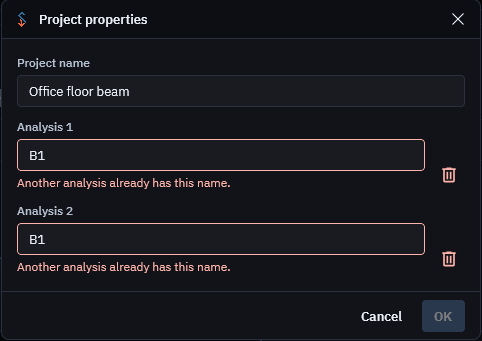
OK applies all renames and deletions together as one undo step, so Ctrl+Z brings a deleted analysis back. Leading and trailing spaces are removed. OK stays disabled while a field shows Enter a project name., Enter an analysis name. or Another analysis already has this name.
Source: spec/beam/workspace-shell.md rules 14 and 15.
Saving, opening and closing
The project file dialog shows only Project file (*.statiko). When you save, Statiko adds .statiko if the name lacks it. The first save of a new project suggests the project name as the file name, and Save as… proposes the current file. A project that is still named Untitled, or has no name, takes the name of the file you save it to, so the title bar, the recent list and the report show the same name; a project you have named keeps its name whatever the file is called. Both dialogs start in the folder of the last project you opened, which Statiko remembers between sessions.
A project remembers the analysis that was selected when you saved it and opens on that analysis. If the file has no valid saved analysis, it opens with nothing selected, and the workspace offers to open or create one.
If you close to the launcher, close the window, or start or open another project while there are unsaved changes, Unsaved changes asks what to do: Save, Discard and close or Cancel.
If saving fails, the notice Save failed / The file could not be saved. offers Try again and Save as. Your work and its results stay as they were, and the unsaved markers remain until a save succeeds.
Source: spec/beam/workspace-shell.md rules 31, 32, 37 to 44.
Window sizes
From 840 to 1199 dp wide, the inputs panel (the inspector) sits on the left beside one scrolling column with the drawing, graphs and checks. From 1200 dp, the checks get their own column on the right. The smallest desktop window is 840 × 600 dp. Tab moves through the title bar, the ribbon, the inspector, the drawing, the checks and the status bar, in that order. Smaller windows, phones and tablets are covered in Chapter 4.
Source: spec/beam/workspace-shell.md rules 26 to 28.