Chapter 14
The report and the PDF
The report turns your calculated beam into an A4 PDF that a checker can read: the basis of design, the beam and its loads, the internal forces, every check with its clause and derivation, and the verdict. You fill in the project details once, choose how much detail to print, preview the pages exactly as they print, and save or print them. The report prints the engine's values, clauses and verdicts from the same result the screens show; it computes nothing of its own.
Opening the report
Open the export view in any of these ways: Report in the ribbon, File › Export PDF report…, Ctrl+P, or the Report button at the end of the checks column.
Preview and Export PDF work only for a complete result of the current input. While results are missing, outdated, calculating or invalid, both are disabled and the view shows “No current result is available for a report. Calculate first.” You can still fill in the form. As soon as the automatic calculation finishes, both buttons enable without reopening the view.
Source: spec/beam/report.md rules 1, 2; spec/beam/workspace-shell.md rule 18; spec/beam/phone-and-tablet.md rule 22.
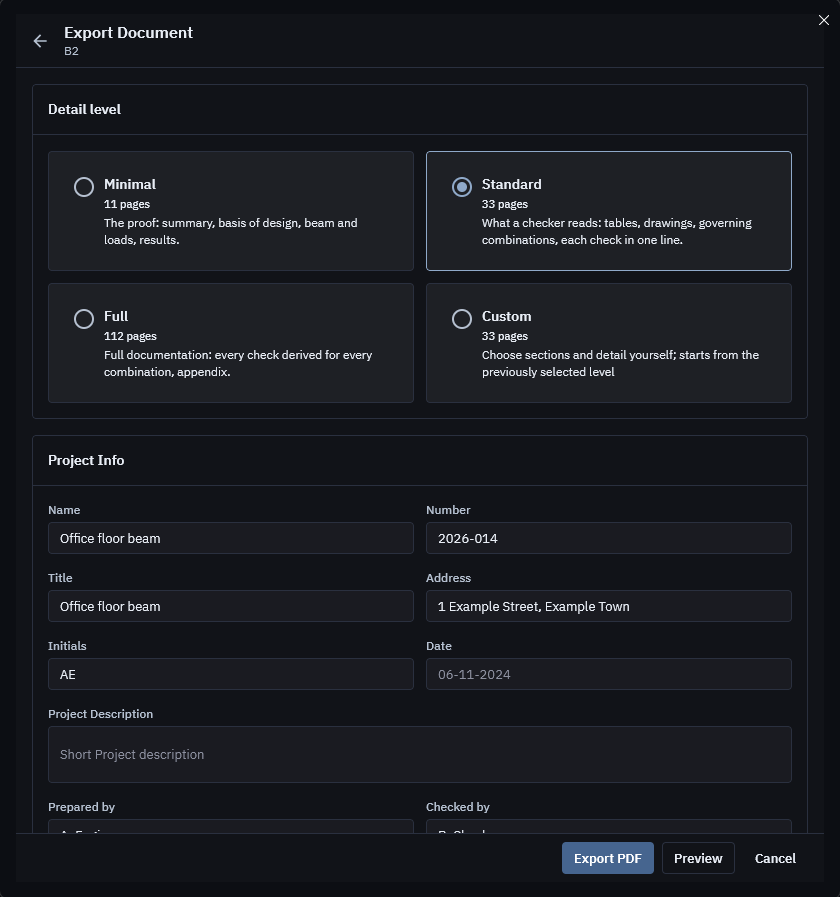
The export form
The export view opens as its own window with one form column. Its footer holds Export PDF, Preview and Cancel; Cancel and Close return to the beam and keep what you typed.
| Group | Fields |
|---|---|
| Project Info | Name, Number, Title, Address, Initials, Date, Project Description, Prepared by, Checked by, Revision |
| Project Requirements | Building construction class, Fire protection requirements |
| Company Info | Name, Company Details, the logo with Add logo and Remove |
| Title Page | The checkbox Print a title page and Location drawing with Add drawing, Replace drawing and Remove |
Every field, the logo and the title page are saved in the project file, so you fill them in once per project. Empty fields print nothing; the grey hints are never printed.
Title page
Tick Print a title page to start the PDF with a cover. It is page 1, before the contents, and counts in “Page x of y”; unticked, the report has no such page. The cover has no page header and keeps the footer. From the top it prints your logo, company name and company details, then the report title, “<number>-<name>” and the name of the analysis, then the location drawing, and at the bottom the filled-in project facts: Address, Date, Prepared by, Initials, Checked by and Revision. If the title is empty, the project name is printed in its place.
The location drawing shows where the beam sits in the building. Add drawing imports a PNG, JPG or PDF, for example a plan or a section. Of a PDF, the first page is placed like an image. A PDF that cannot be read shows “The PDF drawing could not be read. It may be encrypted, empty or damaged.” The logo stays PNG or JPG. Click the drawing to place the marker of the open beam, and click again to move it; each analysis has its own marker on the one drawing. The PDF prints the drawing whole inside a thin frame with the marker as a red ring and the analysis name beside it, and the caption “Location of <analysis name>” below. A drawing without a marker for the analysis prints without marker and caption, and without a drawing the cover prints the text only.
Source: spec/beam/report.md rules 4–7 and 62–66; rule 5 for the failure and permission messages.
Detail levels
Choose how much the report prints with the Detail level cards:
- Minimal: “The proof: summary, basis of design, beam and loads, results.” No equations.
- Standard (default): “What a checker reads: tables, drawings, governing combinations, each check in one line.” No appendix.
- Full: “Full documentation: every check derived at its governing combination, the others tabulated, appendix.”
- Custom: “Choose sections and detail yourself; starts from the previously selected level”.
Each card shows the real page count for your current result, worked out in the background (“Counting pages…” the first time).
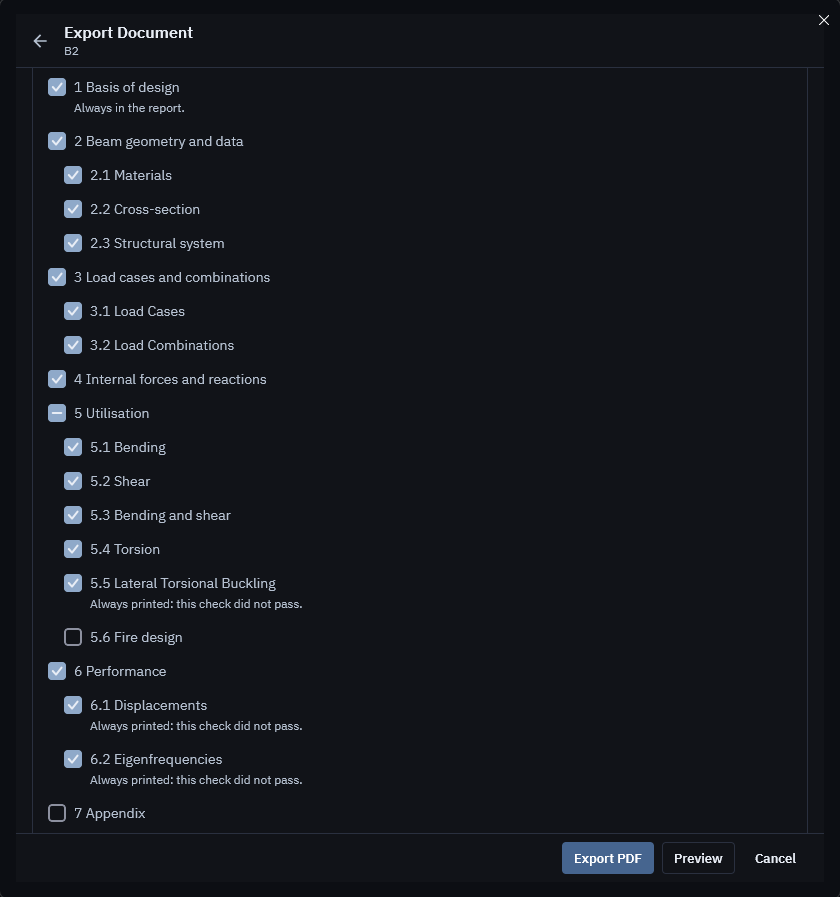
Some content is always printed whatever you choose: the header, the Basis of design and the Summary, and every check whose verdict is not OK, not checked or unsupported. A check that did not pass is printed in its compact form even if you deselect it. The contents and page numbers follow the pages actually printed.
Custom
Custom opens a section tree below the cards. Ticking a parent ticks its children. Locked rows explain themselves: the header, Basis of design and Summary read “Always in the report.”, a check that did not pass reads “Always printed: this check did not pass.” Below the tree you choose:
- Checks: Full derivation, Compact or Summary row only;
- Combinations: All relevant or Governing only; with Full derivation, All relevant derives every check in full for every relevant combination;
- Diagrams: Per combination, Governing only or None;
- Appendix on or off;
- Language: English, Dansk or Српски;
- Units and decimals: “Follows Settings › Units.”
Save as preset… stores the tree and options under a name in your app settings, so the preset is available in every project. Reset to Standard closes Custom.
Source: spec/beam/report.md rules 8–17.
Preview, print and save
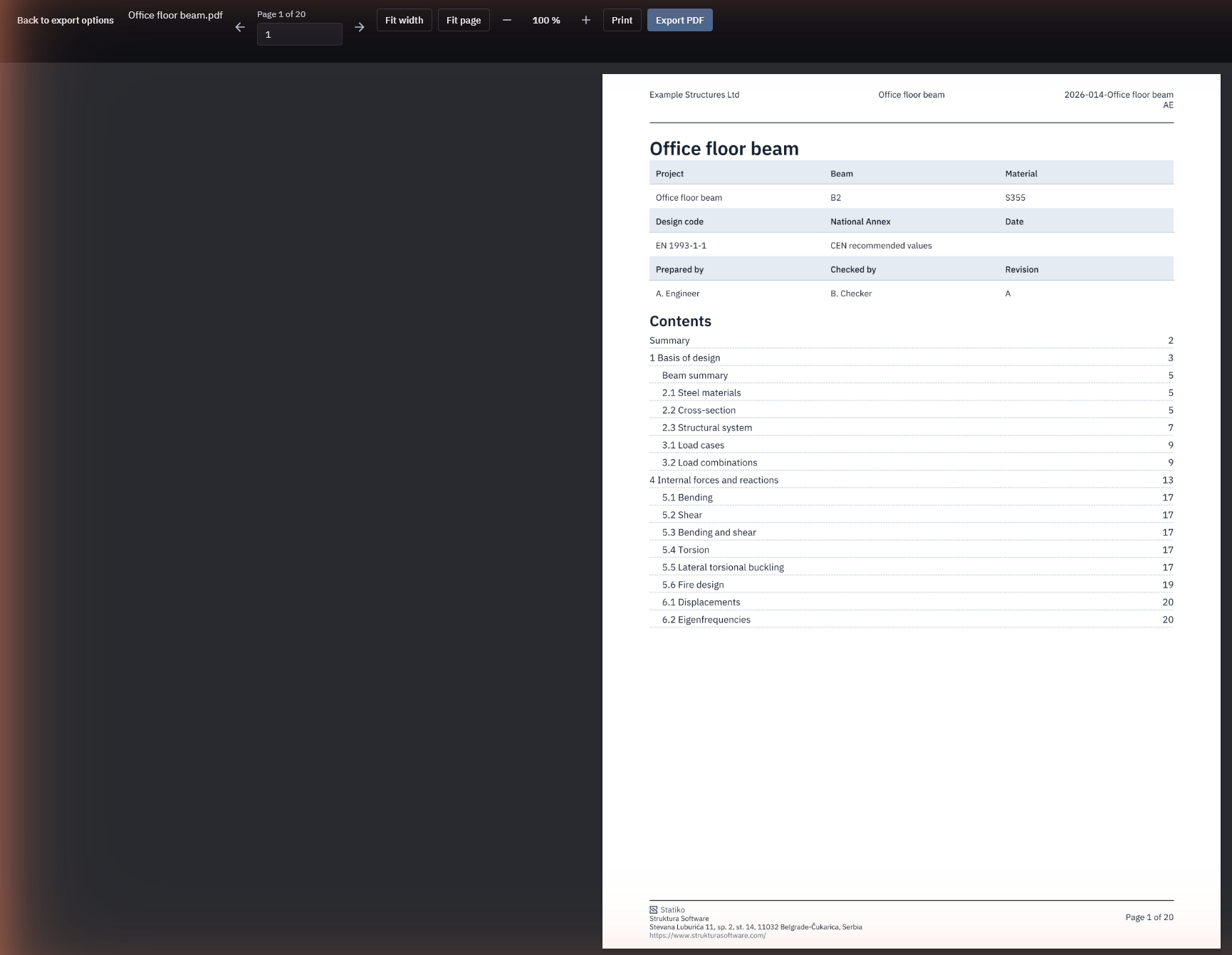
Preview opens the PDF view in its own window. Its toolbar has Back to export options, the file name, Page x of y with a page field and arrows, Fit width, Fit page, 100 % with zoom out and zoom in, Print and Export PDF.
- While the report is written you see “Generating…”, a progress bar and the section in progress, for example “Section: 5 Utilisation”. The project cannot be edited during this time, so the result cannot change under the report. Cancel stops and writes no file.
- When ready, page 1 appears exactly as it prints.
- Export PDF opens the system save dialog with “<project name>.pdf” proposed. After saving the view shows “Report exported”, the file name and Open folder; on Android Share takes its place and sends the saved file to the share sheet.
- Print sends the same pages to the system print dialog on A4.
If writing fails you see “Export failed” with the reason, for example “The report file could not be written.”, and Retry.
Source: spec/beam/report.md rules 3, 18–21; spec/beam/phone-and-tablet.md rule 22.
What the pages contain
Pages are A4 and always light. Every page has a header with your logo, company details, “<number>-<name>”, “<date> / <initials>” and the project title, and a footer with the app name and “Page x of y”. Numbered chapters start on a new page, tables and equations are never split, and a continued section repeats its heading with “(continued)”.
| Chapter | Steel | Timber and glulam |
|---|---|---|
| Summary | The overall verdict and one row per check: clause, governing combination, position, utilisation, verdict and reason. One fire row sits outside the governing check. | |
| 1 Basis of design | Design code and edition, CEN recommended values or the National Annex, consequence class and KFI, your project requirements, the units, and the axes and sign convention figure | |
| 2 Beam geometry and data | Beam summary; 2.1 Materials (fy, fu, γM0, γM1, γM2, and the product stage carbon (A1-A3) table with its total); 2.2 Cross-section with the section figure, properties and plate classification; 2.3 Structural system | Beam summary; 2.1 Materials (strength class, strengths, stiffness, density, design factors with kmod per combination and kdef, and the product stage carbon (A1-A3) table with its total); 2.2 Cross-section; 2.3 Structural system |
| 3 Load cases and combinations | 3.1 Load cases with the loads figure; 3.2 every relevant combination with its EN 1990 equation and the action factor table | |
| 4 Internal forces and reactions | Per relevant combination: a reaction figure that draws the combination's design loads over the characteristic loads as faint dashed outlines, with the legend Design loads · formula at the top left; extremes and support reactions; the M, V and T diagrams for the governing combinations (every combination with Custom › Diagrams: Per combination) | |
| 5 Utilisation | 5.1 Bending, 5.2 Shear, 5.3 Bending and shear, 5.4 Torsion, 5.5 Lateral torsional buckling, 5.6 Fire design | 5.1 Bending, 5.2 Shear, 5.3 Torsion, 5.4 Lateral torsional buckling, 5.5 Bearing at supports, 5.6 Fire design |
| 6 Performance | 6.1 Displacements with the project limit and its source; 6.2 Eigenfrequencies with “This criterion is not a full floor vibration check.” | |
| 7 Appendix | Program and calculation module versions, calculation date, the input listing and the limitations the engine reports for this beam | |
The structural system drawing prints every load value next to its arrow. Where loads are too crowded, a position gets a letter badge (A, B, …) and a load table under the drawing lists them. The diagrams and section figures are drawn by the same builders as the app's graphs and cross-section window.
Each check prints its derivation from the same model as the opened check in the app (see Chapter 12): in Full once at its governing combination, followed by a table of the other relevant combinations (combination, position, design value, resistance, utilisation and verdict), in Standard as one compact line with the governing value, resistance, utilisation, clause and verdict.
A combination whose Show in report box is unticked in the Load combinations window (Chapter 5) leaves the combination tables and the per-combination diagrams, unless it governs a check. The calculation still checks it.
Source: spec/beam/report.md rules 7, 22–32, 36–48, 49–53, 56–59; spec/beam/design-code-member-combinations.md rule 44.
Concrete beam reports
A concrete beam prints its own chapter list: Summary; 1 Basis of design (with the National Annex status, γC, γS, αcc, αct and cot θ); 2 Beam geometry and data with 2.1 Materials and cross-section (materials, the section figure and elevation, the bar and stirrup table, durability rows, section properties and the product stage carbon (A1-A3) table with a Concrete and a Reinforcement row) and 2.3 Structural system; 3 Load cases and combinations; 4 Internal forces and reactions; 5 Concrete verification with one block per check, 5.1 Assumptions, warnings and scope and 5.2 Fire design. There is no Performance or Appendix chapter: deflection is one of the check blocks. Each bending block prints a flexure figure with the compression zone, strains and forces.
Source: spec/beam/concrete-report.md rules 1–13.
How values are printed
Symbols are typeset with real subscripts. Section properties print with four significant figures, forces and moments with two decimals, utilisations with three. Every minus is the true minus “−”.
Source: spec/beam/report.md rules 33, 34; spec/beam/concrete-report.md rule 10.