Chapter 5
Design code, member and load combinations
The three cards at the top of the beam inspector tell you what Statiko calculates with: the standard and National Annex of the project, the member you are checking, and the load combination that the drawing, the graphs and the checks currently show. The cards show values and compute nothing. This chapter explains each card, the Design code dialog behind it, and how the deflection limits work.
The inspector sections
The inspector lists its sections in a fixed order: Design Code, Member, Supports, Loads and Load Combinations. Each section has an icon, a title and a divider. Design code, Member and Load combinations use the same icons as their ribbon commands.
Design code, Member and Load combinations are read cards. You change their contents through an Edit or Change section action, which opens the owning dialog, window or catalogue. The only inputs you edit directly on the Member card are the width and height of a rectangular section, the Product standard select of a steel beam and the Top flange laterally restrained checkbox.
Source: spec/beam/design-code-member-combinations.md rules 1–3.
The Design Code card
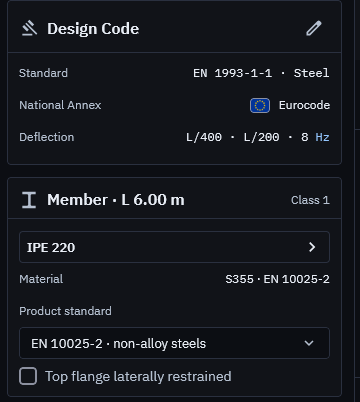
The card has three rows:
- Standard shows the standard and the material, for example EN 1993-1-1 · Steel, EN 1995-1-1 · Timber or EN 1992-1-1 · Concrete.
- National Annex shows the country flag and its name, or Eurocode for the recommended values.
- Deflection shows the limits as L/400 · L/200 · 8 Hz by default: the span limit, the cantilever limit and the natural-frequency limit. The row is read only.
The card has no γM row and no consequence-class row; you find those values in the dialog. The pencil button (Edit) on the card header opens the Design code dialog on its first tab.
Source: spec/beam/design-code-member-combinations.md rules 4–6.
The Design code dialog
Open the dialog with the pencil button on the card, the ribbon command Design code or Model › Design code…. On desktop it opens as its own window with a title bar: you can drag it, the workspace stays drawn behind it, and a click outside does not close it. Cancel, the close control and Esc close it without changes; Apply writes your choices to the project.
Country and code
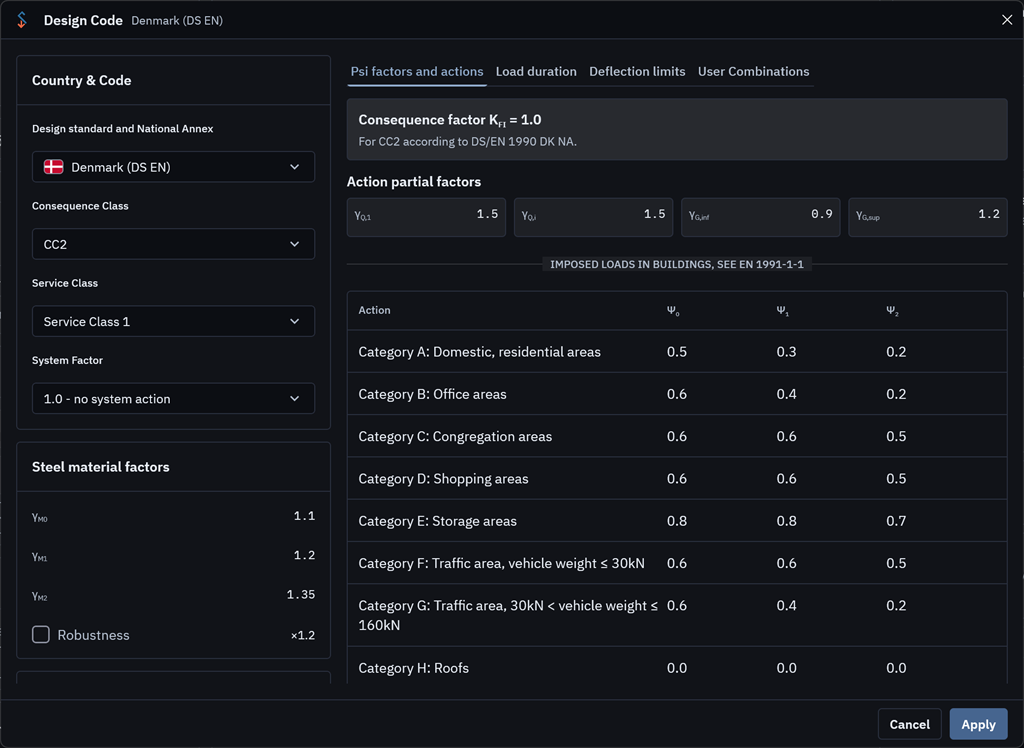
The select Design standard and National Annex offers five choices: Eurocode recommended values, Denmark (DS EN), Sweden (SS EN), Serbia (SRPS EN) and Custom values. Below it you set:
- Consequence Class with CC1, CC2 and CC3. For Sweden the field reads Safety class with SK1, SK2 and SK3.
- Altitude (above sea level) and Characteristic snow load, only for a country that uses these bands.
- Service Class with Service Class 1, 2 and 3.
- System Factor with 1.0 - no system action, 1.1 - normal system action and 1.2 - full system action.
The left column holds Country & Code and the material factor groups: Steel material factors γM0, γM1, γM2 with the Robustness multiplier; Timber material factors (service class, γM,Solid, γM,Glulam, γ3, ksys); Concrete γC, γS, αcc, αct.
Tabs
| Tab | What it shows |
|---|---|
| Psi factors and actions | The consequence factor KFI with its source; Action partial factors γQ,1, γQ,i, γG,inf, γG,sup; Ψ0, Ψ1 and Ψ2 per action, grouped under imposed loads, snow loads and wind actions; under the table, the Custom Load with its own γQ, ψ0, ψ1 and ψ2. |
| Load duration | One choice per action: Permanent, Long-term, Medium-term, Short-term or Instantaneous. |
| Deflection limits | The Preset select and the five limit fields described below. |
| Custom Combinations | The table of the project's custom combinations, described below. |
For a concrete beam the steel and timber factor groups are hidden. For the other materials, the concrete group shows γC, γS, αcc and αct; γC,fi and γS,fi stay hidden.
Custom values
The Custom Load block is editable under every country. Its Values select offers Own values and the live load categories A to H. A category fills the four fields with that category's ψ factors and the γQ,1 of the selected country, and follows the country when you change it. Typing in a field turns the select to Own values and keeps the other three values. γQ must be a number above zero; each ψ must be from 0 to 1, otherwise the field shows Enter a number from 0 to 1. A new project starts at γQ = 1.5 and ψ0 = ψ1 = ψ2 = 1.0. The factors are stored with the project and apply to every Custom load in it (Chapter 15).
With Custom values the factor rows become number fields. A field that is not a finite number above zero shows Enter a finite number greater than zero. Custom adds one timber field, kcr, after γ3. It starts empty. Enter a value above 0 and up to 1, or leave it empty; anything else shows Enter a number greater than zero and at most 1, or leave it empty. Apply stays disabled while a custom factor or limit is invalid. If Apply fails, the dialog shows The selection could not be applied. Try again.
Custom combinations
The Custom Combinations tab holds the combinations you define yourself, next to the ones Statiko generates. The Load combinations window has the same tab (below); both edit the one list of the project. The table has one row per combination and one column per load case of the project: the permanent load, every load case a load of any beam or column has, and every load case a combination already holds a factor for, in the order dead, live A to H, snow, wind and Custom load. A row holds the Name, the Limit state (ULS, SLS · Characteristic, SLS · Frequent, SLS · Quasi-permanent or Fire), one factor field per load case and a delete button. A factor is the whole coefficient of its load case; an empty field leaves the load case out of the combination. Add combination under the table adds an empty row with ULS.
Apply stays disabled while a row is incomplete, and one line under the table names what to correct: Enter a name for every combination., Give every combination its own name., Enter a factor of 0 or more. or Enter a factor above 0 for at least one load case of every combination. The combinations are saved with the other values of the dialog, as one undo step. When you delete a combination that a beam or column has selected, or remove the last of its load cases that the member has, the member's selection moves to the first combination it can show. How a user-defined combination is used in the checks is described in Chapter 15.
Source: spec/beam/design-code-member-combinations.md rules 6, 18, 22, 36–41; spec/beam/concrete-workspace.md rule 3.
Deflection and frequency limits
On the Deflection limits tab the Preset select offers Statiko default (L/400 · L/200 · 8 Hz) and Custom. The five fields are Span, instantaneous, Cantilever, instantaneous, Span, final and Cantilever, final, each written as L/ followed by the number you enter, and Frequency limit in Hz. A field you change is labelled with · Custom after its name. A source line names where the values come from: Statiko default, or a project criterion under EN 1990 A1.4 with EN 1993-1-1 7.2.1 for steel or EN 1995-1-1 7.2 for timber. The fields are disabled when no beam is selected.
A limit L/400 means the deflection may be at most the span length divided by 400; L/200 applies the same rule to a cantilever. How Statiko checks deflection and natural frequency against these limits is described in Chapter 21.
A concrete beam has one limit instead: a Deflection Limit picker with L/250, L/500 and Custom (a denominator above zero). The default is L/250. The same value shows in the card's Deflection row.
Source: spec/beam/design-code-member-combinations.md rules 5, 17; spec/beam/concrete-workspace.md rule 4.
One design code per project
A project has one National Annex for all its analyses. A beam stores only its own deflection and frequency limits. Every factor (γ, ψ, load durations, γM, KFI, service class, γ3, ksys) comes from the project's design code. When you change the design code, the change reaches every beam in every analysis: its checks, section properties, card and report. A file saved by an older version with a copy of the whole settings on a beam opens with that copy's limits as the beam's limits; its factors are dropped.
The country also decides how a steel beam's yield strength is found (Chapter 6). Concrete beams calculate with Eurocode recommended values, Custom values, Denmark (DS EN) and Serbia (SRPS EN); Sweden (SS EN) gives Concrete does not calculate under Sweden (SS EN): the Swedish National Annex to EN 1992-1-1 is not in Statiko yet.
Source: spec/beam/design-code-member-combinations.md rules 21, 22.
The Member card
The header reads Member · L 12.00 m, with the member length in your Length unit and display precision. You never type the length: Statiko computes it from the supports (Chapter 8). With a current result, the section class shows at the right, for example Class 1.
- The section button, for example IPE 220 ›, runs the full width and shows the current section. It opens the cross-section window for the member's material (Chapter 6, Chapter 7).
- Material shows the grade with its standard, read only, for example S355 · EN 10025-2. You choose the grade in the cross-section window.
- Product standard appears for a steel beam with a catalogue grade, in every design country. For an open section you choose EN 10025-2 · non-alloy steels, EN 10025-3 · normalised fine-grain steels or EN 10025-4 · thermomechanical fine-grain steels. A standard that does not cover the grade stays in the list, unavailable, with Not available for S235 (for example). A hollow section shows its standard locked, EN 10210-1 · hot-finished hollow or EN 10219-1 · cold-formed hollow, with Set by the section. Change the section to change it.
- Width and height fields appear only for a rectangular section sized in the member.
- Top flange laterally restrained is described in Chapter 8.
Choosing a product standard is a project edit like any other: Undo and Redo cover it, and the beam recalculates. A new open section takes EN 10025-2 for S235, S275, S355 and S450, and EN 10025-3 for S420 and S460.
Source: spec/beam/design-code-member-combinations.md rules 7–9, 12; spec/beam/steel-yield-strength.md rules 4–10.
The Load combinations card
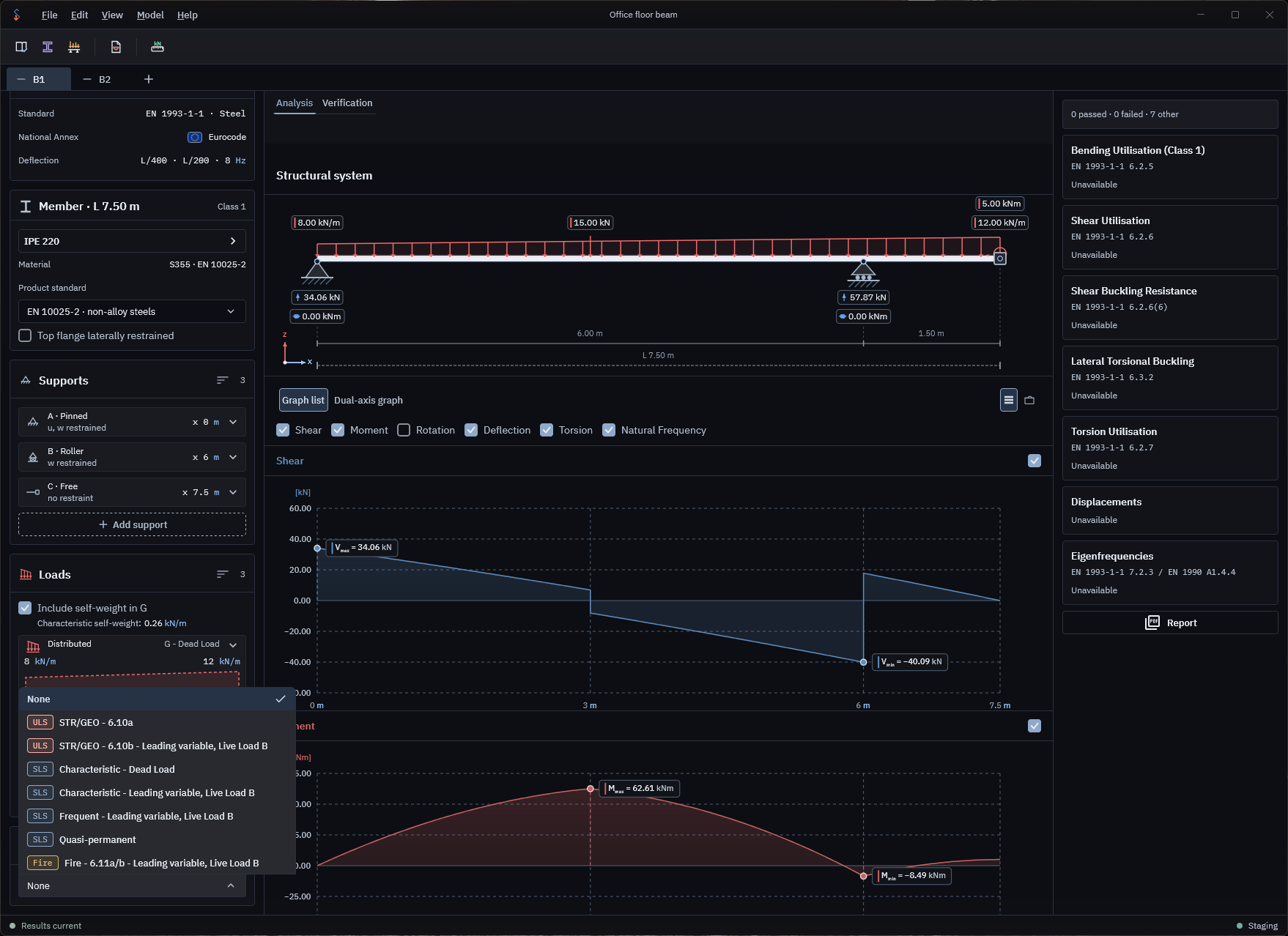
The card holds one select. It lists None first, then this beam's combinations: ULS, then SLS, then Fire. Each option and the closed value carry a coloured ULS, SLS or Fire label before the name, for example STR/GEO - 6.10a, Characteristic, Quasi-permanent or Fire - 6.11a/b. The full name shows in the tooltip. The list widens to its longest item and closes when you click outside, press Esc, scroll outside it or resize the window.
The selected combination is shared: the drawing's reactions, the graphs and the checks all read it, and the status bar names it. Changing it is an edit, so the results become outdated and the calculation runs again for the new combination. No limit rows sit under the select; limits live in the design code.
Edit opens the Load combinations window, which opens as its own window like the Design code dialog. A beam without combinations shows only None, and Edit stays enabled. How the combinations are generated is described in Chapter 15.
After the Fire tab, the window has a Custom Combinations tab with the same table and rules as the Design code dialog (above). Its Apply saves the rows as one undo step and keeps the window open; it is unavailable while nothing changed or a row is incomplete. Close discards what you did not apply.
Every ULS, SLS and Fire row of the window has a Show in report box, ticked by default. Untick it to leave that combination out of the report's combination tables and per-combination diagrams for every beam of the project; a combination that governs a check is printed all the same (Chapter 14). The box is saved with the project and is one undo step. It never changes the calculation, which checks every automatic and user-defined combination. Deleting a user-defined combination drops its box in the same undo step.
Source: spec/beam/design-code-member-combinations.md rules 14–20, 43–45.